A smarter SSH client for Windows
tabs, transfers, and terminal.
All free.

A free SSH client for Windows with real tabs, SCP transfers, and Smart Terminal built in. One application. No nag screens. No account required.

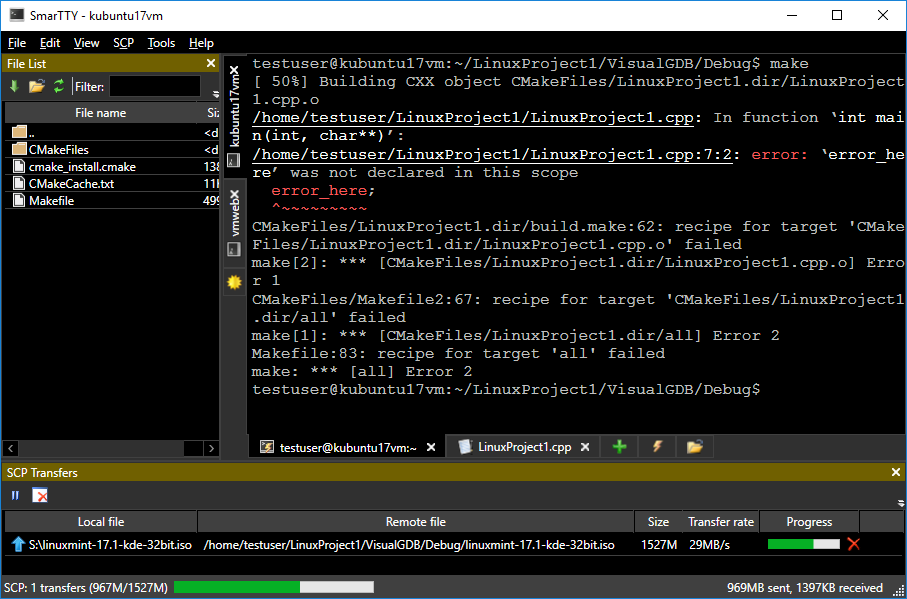
SmarTTY SSH client showing a tabbed terminal session with the Smart Terminal file browser panel

Seven ways SmarTTY changes how you SSH.

One application handles terminal sessions, file transfers, remote editing, and package management — without reaching for a second tool. Every feature ships in the same free download.

Tabbed sessions

One authenticated SSH connection carries up to ten independent shell sessions. Open a new tab and you're in a fresh shell instantly — no second login, no second window cluttering your taskbar.

  • Up to ~10 sub-sessions per connection, no additional auth
  • Instant tab switching with no reconnect delay
  • Per-tab status indicator shows which session is busy (v3.0)

SmarTTY showing multiple terminal tabs open within a single SSH connection

Smart Terminal

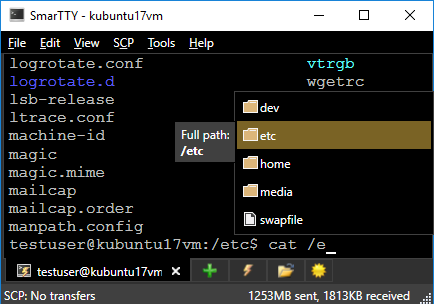
Smart Terminal reads your current directory on every prompt redraw and offers filename, folder, and command completions before you've typed the second character. A side panel renders the live directory listing so you never need to type ls to find a filename.

  • Live filename and folder completion from the remote directory
  • Persistent directory browser side panel
  • file:line output becomes a clickable link that jumps to the editor
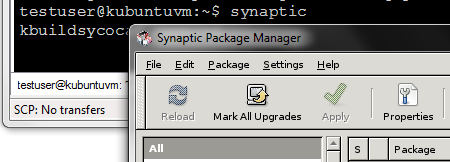
  • Point-and-click front end for APT and YUM package management
SmarTTY Smart Terminal showing auto-completion suggestions and the directory browser panel

SCP file transfer

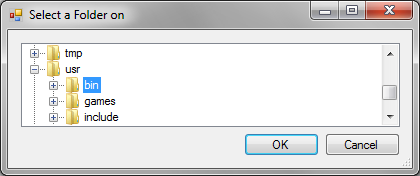
Browse the remote filesystem without leaving SmarTTY. Upload or download individual files and full directory trees over SCP. Folder transfers use TAR piping — no intermediate ZIP is ever written to disk, and permissions are preserved end-to-end.

  • Full remote filesystem browser with two-pane navigation
  • TAR-backed folder transfers preserve permissions and symlinks
  • Drag-and-drop upload from the directory browser panel
SmarTTY SCP file browser showing the remote directory tree with transfer controls

Remote file editing

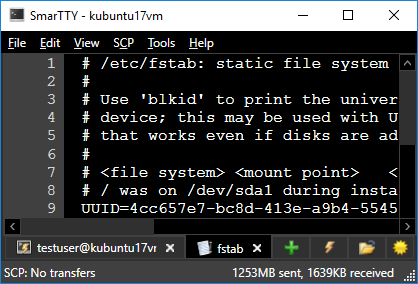
Open any remote file in a built-in editor tab. Line endings convert automatically. Write-protected system files — like /etc/nginx/nginx.conf — are saved back through sudo, so you get a familiar Save dialog instead of a permission-denied error.

  • Remote files open in a dedicated editor tab inside SmarTTY
  • Automatic Unix ↔ Windows line-ending conversion
  • Sudo write-back for system files, no manual workaround needed
  • Opens at the exact line when following a file:line link
SmarTTY remote file editor showing a configuration file open in its own tab

Hex terminal

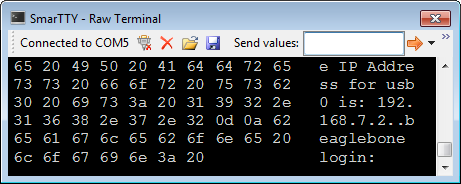
Connect to COM ports or raw TCP sockets and read the stream as ASCII, hex, or both side-by-side. Bytes are grouped by arrival packet, making framing and protocol timing visible at a glance — without a separate protocol analyser.

  • COM port (serial) and raw TCP socket support
  • ASCII, hex, and dual-pane view modes
  • Bytes grouped by arrival packet for protocol inspection
  • Full session logging to disk for post-capture review
SmarTTY hex terminal showing incoming bytes in ASCII and hexadecimal side-by-side columns

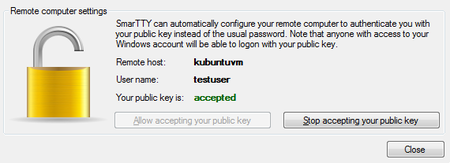
Public-key authentication

Generate a key pair and deploy the public key to your server in one click. The private key lives in the Windows Credential Manager — it is never written to a plain-text file, and your Unix password is never stored anywhere.

  • One-click key generation and remote installation wizard
  • Private key stored in Windows Credential Manager, not on disk in plaintext
  • RSA (2048 / 4096 bit), ECDSA (P-256, P-384), and Ed25519 key types
SmarTTY public-key authentication setup dialog showing key generation and deployment controls

X11 forwarding

XMing and VcXsrv ship inside SmarTTY. The X server starts automatically the moment you run a GUI program from the terminal — nothing to install separately, no DISPLAY variable to set, no firewall rules to configure. The X11 channel runs through the existing SSH tunnel, encrypted end-to-end.

  • XMing and VcXsrv bundled — no separate X server installer
  • Auto-start on first GUI command, no manual DISPLAY config
  • X11 channel tunnelled through SSH — all traffic is encrypted
SmarTTY X11 forwarding showing a remote Linux GUI application running on a Windows desktop

Download SmarTTY free.

Free for Windows 10 and 11. No account required. No nag screens. Portable version available alongside the installer.

Windows 10 / 11  ·  x64  ·  Free  ·  v3.0